Upload a file using Business Central to Azure Blob Storage with AL Code
Updated: Jan 13
In this example, we will create a simple csv file and upload. Please note this is simply for demo purposes, if you are using this within your real environments, you should use a table to store the variables so that they are not hardcoded.
We need a function to create a csv file ready to upload to azure storage.
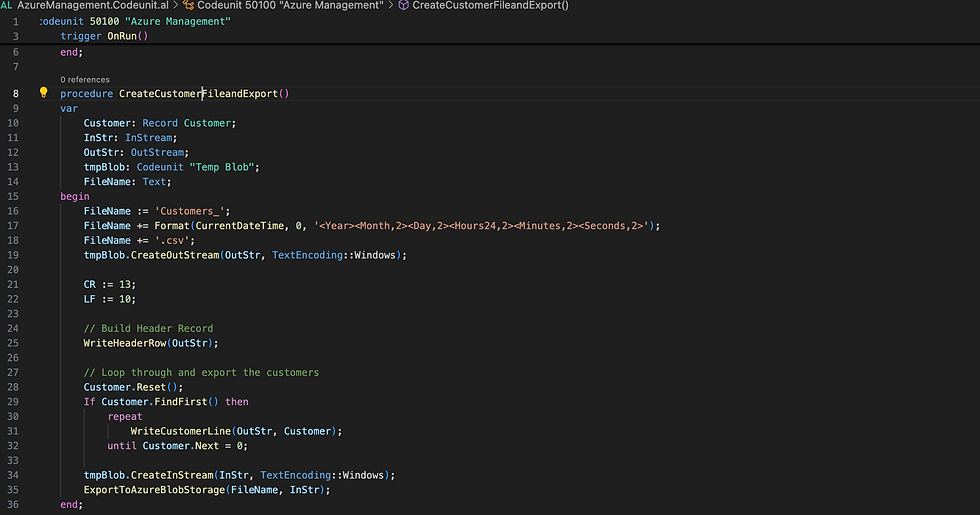
WriteHeaderRow and WriteCustomerLine functions:

Now we need the function to upload the file to Azure Blob Storage:
Note here are where i mentioned above regarding variables. These should be placed on a setup table but for visual reference they are hardcoded in this example.
You could expand on this a create a log table to record successful / failed uploads.

Testing our Upload
To test the integration, we can add an action button to the Customer List page and call the function:

I hope this helps you uploading a file from Business Central to Azure Blob Storage. Please reach out if you have any questions.


Comments